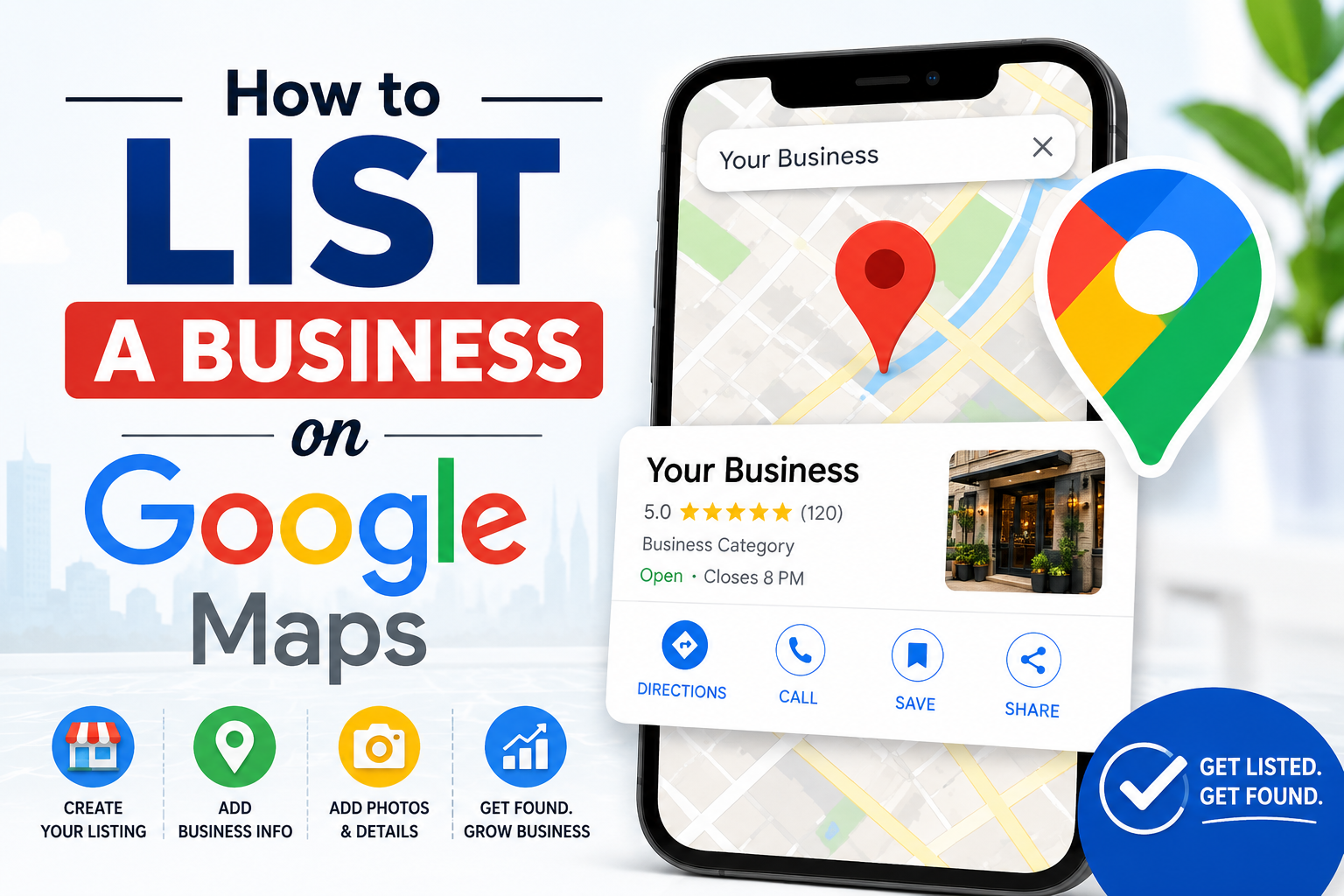
I believe one of the most critical steps for any local business owner is establishing a strong digital presence where customers are already looking. When people want to buy bread, fix a plumbing issue, or find a boutique nearby, their first instinct is to open their smartphones and search on Google Maps. If your business doesn’t show up in those search results, you are essentially invisible to a massive pool of local buyers.
Listing your business on Google Maps is completely free, and it is powered by Google Business Profile (formerly Google My Business). In my opinion, it is the single highest-return marketing activity a local business can undertake, yet many owners still struggle with setting it up correctly or getting verified. In this detailed guide, I will share the exact step-by-step process of how to list business on google maps, verify your profile, and optimize it to rank higher in local search results.
Table of Contents
- Step 1: Access Google Business Profile
- Step 2: Enter Your Business Name
- Step 3: Select Your Business Type and Category
- Step 4: Add Your Location or Service Area
- Step 5: Provide Your Contact Details
- Step 6: Verify Your Google Maps Listing
- Step 7: Complete and Optimize Your Profile
- Optimization Tasks and Local SEO Impact
- My Top Tips to Rank Higher on Google Maps
- Frequently Asked Questions
- Conclusion
Step 1: Access Google Business Profile
The first step is to visit the official Google Business Profile website (google.com/business). I recommend signing in using a dedicated Google Workspace or Gmail account that is linked to your business, rather than your personal email. This keeps your business assets separate and makes it much easier to transfer ownership or delegate management to staff or partners later on. Once signed in, click the “Manage Now” button to begin the setup process.
Step 2: Enter Your Business Name
Type your business name into the search box. If you see your business appear in the drop-down menu, it means a listing already exists (either auto-generated by Google or created previously). In that case, you will follow the prompts to claim the existing listing. If your business does not appear, click “Add your business to Google.” I believe it is vital to write your name exactly as it appears on your physical storefront. Avoid stuffing keywords or locations into your name (for example, writing “Apex Plumbing Service Best Plumber Near Me”), as this violates Google’s guidelines and can lead to a sudden suspension.
Step 3: Select Your Business Type and Category
Next, you must specify how you serve your customers. Google will ask you to choose from three options: Online Retail, Local Store (if you have a physical location customers visit), or Service Business (if you deliver goods or services directly to customers). After selecting the type, you must choose a primary business category. In my view, this is one of the most important decisions you will make during setup, as Google relies heavily on your primary category to determine when to show your business in search results. Pick the category that describes your core business most specifically (for example, “Italian Restaurant” instead of just “Restaurant”).
Step 4: Add Your Location or Service Area
If you have a physical shop or office where customers can walk in, you will be prompted to enter your exact address. Ensure that you enter the details accurately so the red pin drops precisely on your entrance. If you run your business from home (like a home bakery or consulting service) and do not want your home address visible to the public, choose the option to hide your address. Instead, you will define your “Service Area.” You can list specific cities, postal codes, or regions where you are willing to travel to deliver your services.
Step 5: Provide Your Contact Details
Google will ask for your business phone number and website URL. I recommend providing a number that is consistently answered during business hours. If you do not have a website, you can leave that field blank, but I believe having even a simple, one-page website greatly improves your credibility and organic ranking. Make sure that the contact info you provide here matches the information displayed on your social media pages and other online directories, as Google uses cross-referencing to confirm the authenticity of your business.
Step 6: Verify Your Google Maps Listing
Your listing will not appear publicly on Google Maps until it is verified. Google offers several verification methods, and the options available to you will depend on your business type and category. You can read the detailed Google verification guide for more context. The most common methods include:
- Postcard Verification: Google mails a physical postcard containing a unique verification code to your business address. This usually takes 5 to 14 business days to arrive. Once you receive it, enter the code in your profile dashboard.
- Phone or SMS Verification: Google sends a text code or calls your listed phone number with a verification code. This is the fastest method, but it is only available to select categories.
- Email Verification: A verification code is sent directly to your business email address.
- Video Recording: You record a single, continuous video showing your business location, your street sign, your equipment, and proof that you have access to the business (such as opening the door with a key or showing your business license). This is becoming the standard verification method for home-based service providers.
Step 7: Complete and Optimize Your Profile
Once you submit your verification request, do not leave your profile blank. I suggest completing every field in your dashboard. Add your exact operating hours, write a detailed business description highlighting your history and unique features, and list the specific services or products you offer. Most importantly, upload high-quality photos of your storefront, workspace, products, and team. Listings with photos receive significantly more interaction and clicks than those without.
Optimization Tasks and Local SEO Impact
To give you a clear roadmap of what tasks to focus on once your business is listed, I have outlined the key profile optimization tasks below along with their direct impact on your local search ranking.
| Optimization Task | Implementation Action | Impact on Local SEO Ranking |
|---|---|---|
| Collect Reviews | Ask satisfied clients to leave detailed, written reviews with keywords. | Critical: Directly influences the “Local Pack” ranking and builds customer trust. |
| Upload High-Res Photos | Add weekly photos of products, store interior, and completed jobs. | High: Increases click-through rates (CTR) and keeps users engaged on your listing. |
| Add Services & Products | List every service you offer and set up product catalogs with prices. | Medium: Helps Google match your profile with specific niche search queries. |
| Post Regular Updates | Use the “Update” feature to share offers, events, and business news. | Medium: Shows Google your business is active and provides fresh content. |
| Maintain NAP Consistency | Ensure Name, Address, and Phone details are identical across the web. | High: Validates your business legitimacy in the eyes of Google’s algorithms. |
My Top Tips to Rank Higher on Google Maps
Just listing your business is only half the battle. To stand out from the competition, you need to actively work on improving your local ranking. Here are my top recommendations:
- Create a Review Strategy: Reviews are the lifeblood of local SEO. I suggest sending a direct feedback link to your customers immediately after a transaction. Encourage them to mention specific services they bought in their review text.
- Answer Every Review: Make it a habit to reply to all reviews, both positive and negative. A quick reply showing appreciation for a positive review or offering a solution to a negative one shows potential clients that you care about service quality.
- Keep Your Hours Updated: Ensure that your profile reflects holiday hours, early closures, or seasonal shifts. There is nothing worse for customer relations than a client driving to your listed location only to find you closed when Google Maps said you were open.
- Use the Q&A Section: Google allows anyone to ask questions on your listing. I suggest posting your own frequently asked questions and answering them yourself to preempt common queries from potential customers.
Frequently Asked Questions
Q1. Is it free to list a business on Google Maps?
Yes, listing your business on Google Maps via Google Business Profile is completely free. Google does not charge for creating, maintaining, or optimizing your listing. If you ever receive a phone call from someone claiming you must pay a fee to keep your listing active or verified, it is a scam.
Q2. How long does the verification process take?
The time frame depends on the verification method Google assigns to your business. Phone and email verification are instant. Postcard verification takes about 5 to 14 business days depending on mail transit times. Video verification reviews are typically completed by Google within 3 to 5 business days.
Q3. Can I list a home-based business on Google Maps?
Yes, you can. During setup, you simply toggle off the option that says “I serve customers at my business address.” This will hide your home address from public view. You will then specify your service areas (by city or zip code) so that Google knows where to display your listing.
Q4. What should I do if someone else has claimed my business?
If you search for your business name and find an active listing that you do not have access to, click the “Own this business?” or “Claim this business” link on the profile. Google will guide you through a request form that goes to the current owner. You can also refer to the Google Business Profile Help Center for detailed instructions. If they do not respond within 3 days, Google will allow you to verify your relationship to the business and claim ownership.
Conclusion
I believe that setting up your Google Maps presence is the most important foundation for any local marketing strategy. It places your brand in front of high-intent local buyers at the exact moment they are looking to make a purchase. By following these steps to create, verify, and complete your profile, you will build a powerful local discovery engine that works for your business 24/7.
Begin by setting up your profile, taking a few clear photos, and getting that verification process started. The sooner you are listed, the sooner you can start turning search queries into loyal local customers.
If you are planning to set up your business listing or have run into verification issues, feel free to share your thoughts. In my opinion, troubleshooting the verification process early is the best way to secure your digital location.
